
How to Make a Video Louder on iPhone, Mac and in the Browser
First: is the video quiet, or is the phone?
Worth thirty seconds before editing anything. Play the clip through headphones, or on another device. If it’s fine there, the file isn’t the problem — your speaker, a volume limit or a normalisation setting is, and iPhone volume low walks through those.
If it’s quiet everywhere, the audio in the file is quiet, and the rest of this post applies.
Why videos come out quiet
Usually the recording. A phone microphone is tiny and a few metres away from the subject, and the automatic level control does its best. Add a case over the mic, some wind, or a subject facing the other way, and the level that gets recorded is low with a lot of room noise around it.
That last part matters for what comes next. Raising the volume raises everything — the speech you wanted and the hiss, traffic and handling noise you didn’t. A quiet, clean recording can take a lot of gain. A quiet, noisy one gets louder and worse at the same time, and there’s a point where more gain isn’t an improvement.
Method 1: iMovie (iPhone, iPad, Mac)
iMovie is free on every Apple device and it’s the built-in answer. The Photos app can trim a clip but can’t change its volume; iMovie can.
On iPhone or iPad: create a new movie, add the clip, tap it in the timeline, choose the speaker icon, and drag the volume slider up past 100%. Export from the share menu.
On Mac: drag the clip into the timeline, open the volume controls above the viewer, and raise the clip volume. iMovie on Mac lets you go up to 400%, which is a great deal of gain — more than most clips can take cleanly. There’s also an auto option that normalises the clip for you, and for a video you’re going to share it’s usually the better choice.
Two things to know. iMovie re-encodes the video on export, which is normally fine but is a quality step you didn’t strictly need. And the slider is gain, not loudness: at some point the loud parts hit the ceiling and start to crackle. If you hear that, back off.
Method 2: in the browser
For a single clip, the fastest route is a browser tool that takes the video, processes the audio on your device, and gives you back a new file. No install, no account.
The make video louder tool does this in two ways: a gain slider for a straight boost, and a normalise option that measures the clip first and lifts it to a target level so it can’t clip. For a video you’re sending to someone, normalise is the one to use — it makes a quiet clip much louder and a loud one barely changes, which is exactly the behaviour you want.
Everything runs locally. The file never leaves your machine, which matters both for privacy and because a five-minute video is a large upload.
Method 3: ffmpeg (any computer)
If you’re comfortable with a terminal, ffmpeg does this precisely and without touching the video stream at all.
A straight 6 dB boost, copying the video exactly:
ffmpeg -i input.mp4 -af "volume=6dB" -c:v copy output.mp4Or normalise to a standard loudness instead, which handles quiet and loud clips alike and applies a true-peak ceiling so nothing clips:
ffmpeg -i input.mp4 -af "loudnorm=I=-16:TP=-1.5:LRA=11" -c:v copy output.mp4The -c:v copy part is what keeps the video pixels identical; only the audio is re-encoded. The target of −16 LUFS is a common level for online video and speech; use −14 if you want it hotter.
Boost versus normalise
This is the distinction that decides whether the result sounds good.
Boost adds a fixed amount of gain to everything. 6 dB louder means the quiet parts and the peaks get 6 dB louder. If the peaks were already near the ceiling, they go through it, and you get clipping: flat-topped waveforms that sound like crackle and harshness.
Normalise measures first. It works out how loud the clip already is and raises it by exactly the amount needed to hit a target. A whisper-quiet clip gets a big lift; a clip that’s already fine gets none. Good normalisers also watch the peaks and stop before clipping.
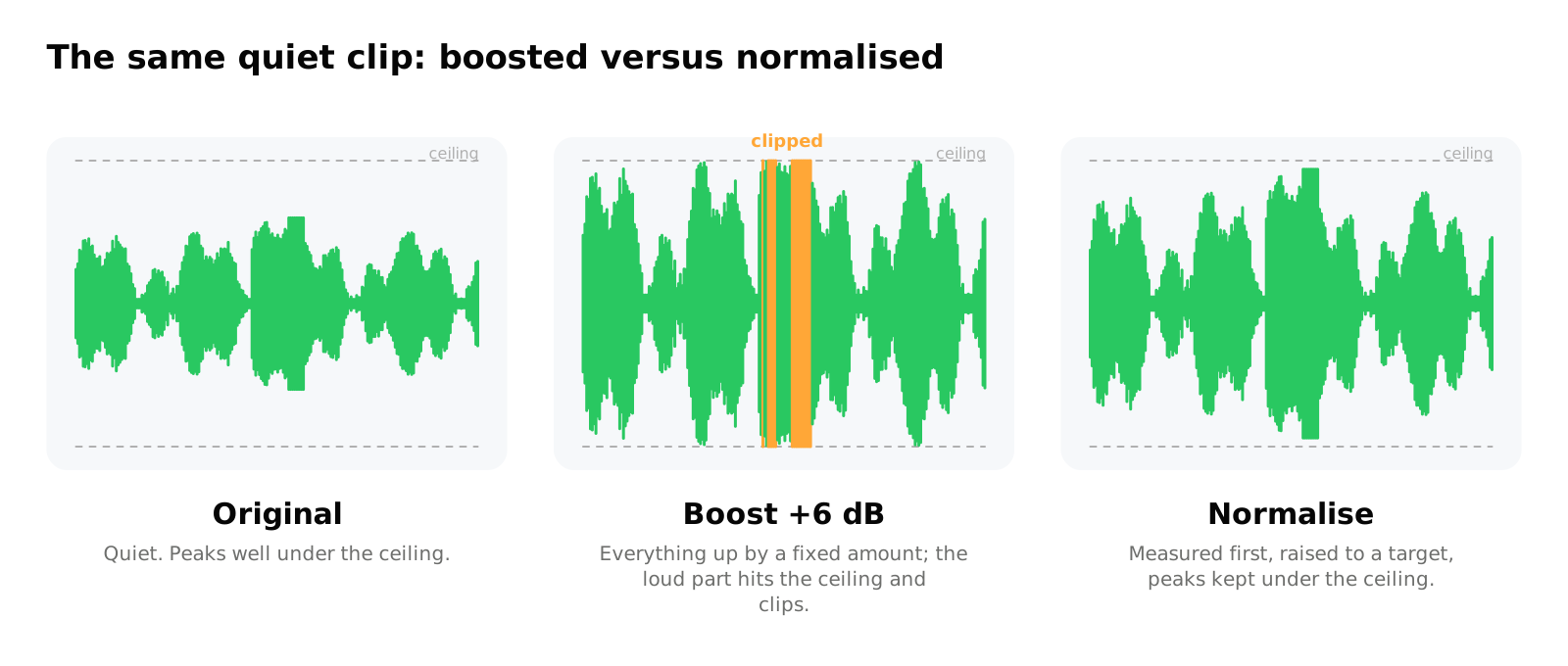
For your own listening, a boost is fine — you’ll hear if it’s too much. For anything you’ll share, normalise.
When louder isn’t better
Some clips can’t be saved by gain, and it’s worth recognising them early.
- Noise floor. If the speech is only slightly above the hiss, raising both doesn’t help. You’d need noise reduction, which is a different job
- Clipped source. If the recording already distorts on the loud parts, it was clipped when recorded and no volume change fixes it
- Room echo. Gain makes the echo louder too. A voice three metres from the mic in a tiled room will never sound close
- One quiet speaker. If one person is quiet and another is loud, a fixed boost pushes the loud one into clipping. This needs compression or a per-section edit, not a slider
What about playback apps?
VLC on desktop lets you push playback past 100%, which is a perfectly good way to watch a quiet file once. It doesn’t change the file, so the video is still quiet when you share it or open it elsewhere.
And a note on our own app, since people ask: Volume Booster is an audio player. It makes music and audio files louder with a bass booster and an equalizer; it doesn’t open or export video. For video, the three methods above are the honest answer. The same goes for any iPhone app claiming to boost video in other apps — iOS doesn’t allow one app to touch another’s audio, and how volume booster apps work on iPhone explains why.
The short version
| You have | Use | Best for |
|---|---|---|
| iPhone or iPad | iMovie, volume slider | One clip, no install |
| Mac | iMovie, or the auto-normalise option | Bigger edits |
| Any browser | Make video louder, normalise | Fastest for a single file |
| Terminal | ffmpeg loudnorm | Batches, exact control, untouched video |
Raise it until it’s loud enough, not until it’s as loud as possible. The difference is the crackle.
Frequently asked questions
Why Is My iPhone Quieter Than It Used to Be?
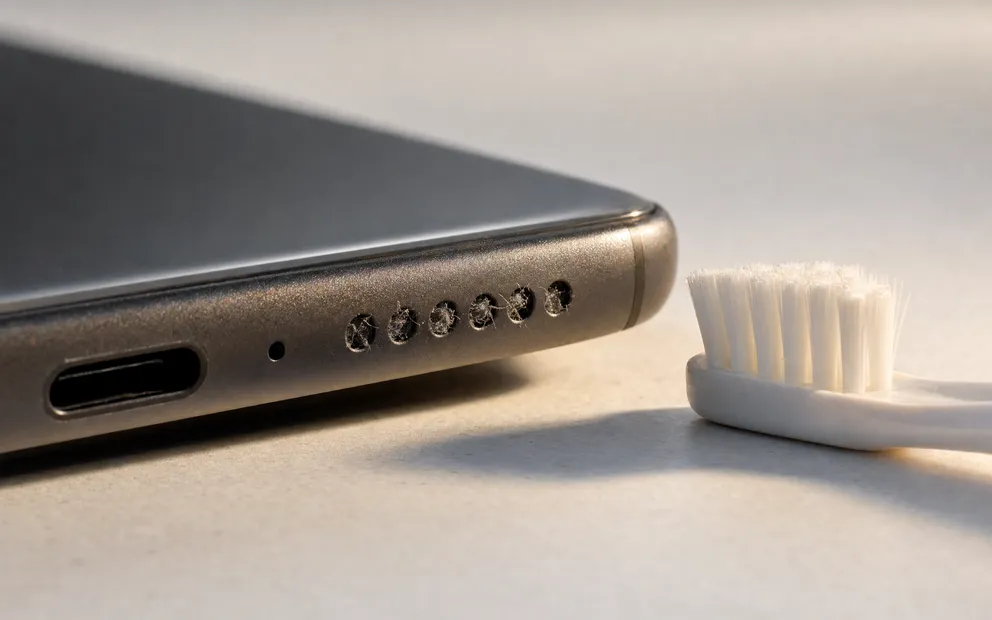
iPhone quieter than it used to be? Most causes changed without you touching them: an update, a filling grille, a case, a remembered Bluetooth device.
Volume Booster App vs Browser Extension: Which Do You Actually Need?
Volume booster app vs browser extension: an extension boosts any desktop tab; an iPhone app, only its own playback. And extensions have a safety problem.
Make your music louder than ever.
Boost the volume, add deep bass, and fine-tune every track with a 6-band equalizer — all in one simple app.
Download the App